Sitting for 8+ hours a day is one of the biggest health risks for adults over 60, even if you exercise regularly. Research consistently shows that prolonged sitting increases the risk of cardiovascular disease, diabetes, back pain, and premature death, independent of exercise habits. A standing desk doesn’t require you to stand all day. It lets you alternate between sitting and standing throughout the day, breaking up those dangerous long stretches of immobility.
You don’t need to overhaul your entire office or commit to standing all day. A quality sit-stand desk gives you the option to change positions throughout your workday, which is what your body actually needs.
Why Alternating Matters More Than Standing
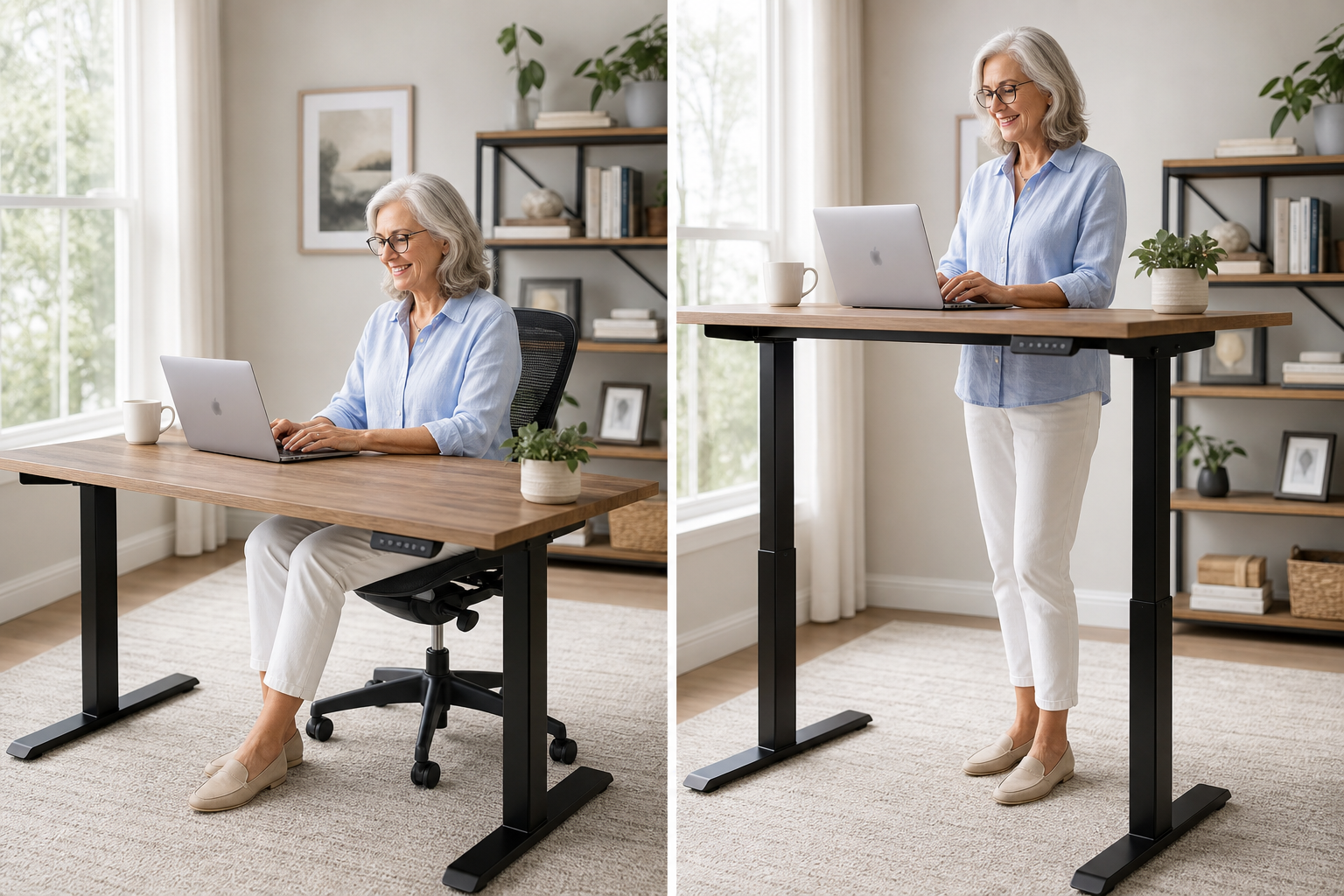
Standing all day isn’t the answer either. Prolonged standing causes foot pain, ankle swelling, varicose veins, and lower back fatigue. The research-backed approach is alternating between sitting and standing every 20-30 minutes. A sit-stand desk that adjusts height smoothly and quickly makes this practical. Without easy adjustment, you’ll default to whatever position the desk is in and lose the alternating benefit.
Think of it this way: your body wasn’t designed to hold any single position for hours at a time. Movement is what keeps your circulation going, your muscles engaged, and your joints lubricated. Alternating between sitting and standing gives you that movement without requiring you to leave your desk or interrupt your work.
Features That Matter for Seniors
Not all standing desks are created equal, and some features make a real difference in whether you’ll actually use the desk daily or let it collect dust in the standing position.
Electric vs. Manual Adjustment
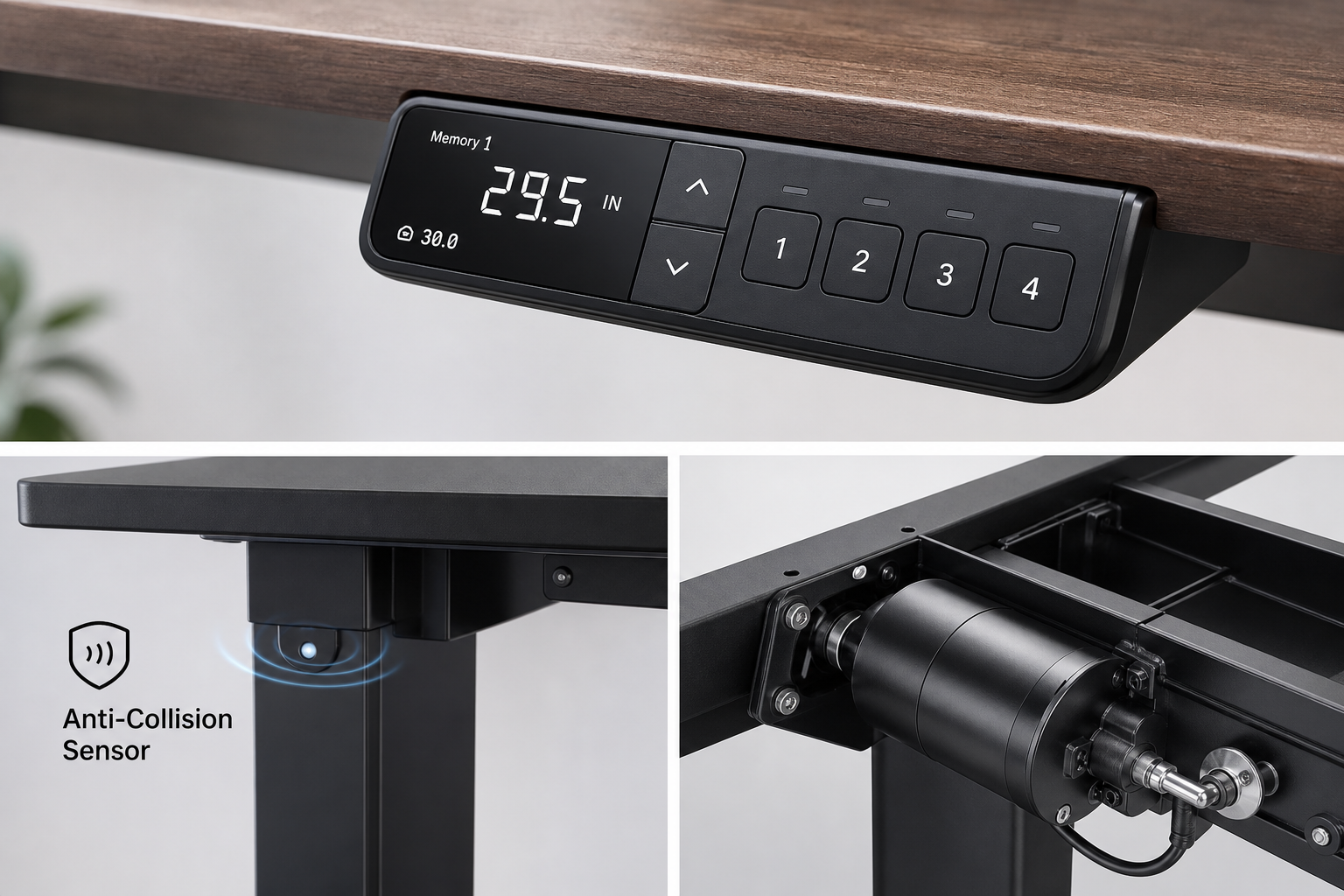
Electric desks use a motor to raise and lower the desktop at the push of a button. Manual desks use a hand crank, pneumatic lever, or counterweight system. For seniors, electric is strongly recommended. The effortless button-press transition removes the barrier that makes manual adjustment feel like a chore (and a chore you’ll stop doing after the first week). Electric motors also allow precise height positioning and memory presets.
Manual cranks require continuous turning through the entire height range. If you have arthritis in your hands or wrists, that’s a non-starter. Pneumatic levers are easier but still require physical effort and often don’t hold the height as precisely as electric systems.
Memory Presets
Memory buttons save your preferred sitting and standing heights so you can switch with one button press rather than holding the button and eyeballing the height each time. This seems like a small feature, but it’s the difference between adjusting 15+ times a day (easy) and adjusting twice (which is what happens without presets).
Most electric desks include at least two memory presets, though four is better if multiple people use the desk or if you want to save additional heights for different tasks (typing vs. reading, for example).
Stability at Standing Height
A wobbly desk at standing height is annoying and can be a balance hazard if you lean on it for support. Heavier, steel-framed desks with crossbars are the most stable. Lightweight desks and desk converters (units that sit on top of an existing desk) tend to wobble more at full extension.
Test this before buying if possible. Place your hands on the desktop at standing height and apply gentle downward pressure. The desk should feel solid. If it sways or flexes, that instability gets worse with daily use.
Height Range
The desk needs to go low enough for comfortable sitting and high enough for comfortable standing. For sitting, your elbows should be at 90 degrees with your forearms parallel to the desktop. For standing, the same elbow position applies but at your standing height. Look for a range of at least 25-50 inches to accommodate most heights in both positions.
If you’re shorter than 5’4″ or taller than 6’2″, pay extra attention to the minimum and maximum heights. Some desks don’t go low enough for shorter users or high enough for taller ones.
Weight Capacity
Most standing desks support 150-300 pounds of desktop load. That’s enough for multiple monitors, a laptop, books, and office accessories. If you have a particularly heavy setup (dual large monitors, for example), check the weight capacity before buying.
Noise Level
Electric motors make some noise when adjusting. Better motors are quieter. This matters if you take calls while standing or if you share a workspace with others. Look for desks rated at 50 decibels or lower during adjustment. That’s about as loud as a quiet conversation.
Top Standing Desks for Seniors
FlexiSpot E7
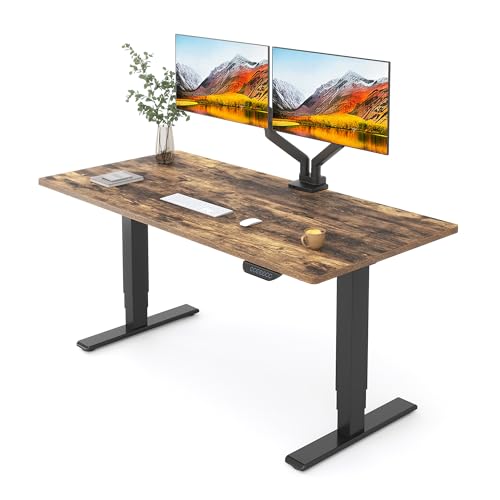
FlexiSpot E7 Electric Standing Desk
Best mid-range option with dual motors, 4 memory presets, and excellent stability
The FlexiSpot E7 is one of the most popular electric standing desks, with a dual-motor system that raises and lowers smoothly and quietly. It includes 4 memory presets, an anti-collision system (stops moving if it hits something), and a height range of 22.8-48.4 inches. The steel frame is rock-solid at standing height. Desktop sizes range from 48 to 80 inches wide.
The dual-motor system lifts up to 355 pounds, so you don’t have to worry about overloading the desk. The anti-collision feature is particularly useful if you have a desk organizer or coffee cup that you forget to move before adjusting. The desk will stop and reverse slightly if it encounters resistance.
The control panel is simple and intuitive. Large, clearly labeled buttons make it easy to see what you’re pressing even if you wear progressive lenses or have reduced fine vision.
Best for: Seniors who want a reliable, mid-priced electric desk with excellent stability and straightforward controls.
Uplift V2

Uplift V2 Standing Desk
Premium choice with widest height range and exceptional stability
The Uplift V2 is a premium option with a height range of 25.3-50.9 inches (one of the widest ranges available), making it suitable for both very short and very tall users. The frame is exceptionally stable, and the motor is among the quietest in the category. Available with various desktop materials including bamboo, laminate, and solid wood.
The advanced control panel includes collision detection, a child lock (which doubles as a prevention against accidental adjustments), and programmable sit-stand reminders that beep to prompt you to change positions. You can turn the reminders off if you find them annoying, but they help build the habit in the first few weeks.
The Uplift also offers extensive customization. You can choose desktop size, shape (rectangle, L-shape, corner), and finish. If you want your home office to look polished, this is the desk to get.
Best for: Seniors who want the most stable, highest-quality standing desk and don’t mind the premium price.
FEZIBO Electric Standing Desk

FEZIBO Electric Standing Desk
Best budget-friendly electric option with essential features
The FEZIBO is the best budget electric standing desk. It includes a single motor (slower than dual-motor models but adequate for occasional adjustments), 4 memory presets, and a sturdy steel frame. The 48×24 inch desktop is standard office size. It’s not as smooth or quiet as the FlexiSpot or Uplift, but at a much lower price point, it delivers the core functionality.
The single motor takes about 20 seconds to go from sitting to standing height. That’s slower than dual-motor models (which take about 10 seconds), but it’s still fast enough that you won’t avoid adjusting. The motor is rated to lift 176 pounds.
The frame is solid but lacks the crossbar reinforcement of higher-end models. At standing height, you’ll notice a small amount of wobble if you lean heavily on the desk. For most people, this isn’t a problem, but if you use your desk for support while standing, consider the FlexiSpot or Uplift instead.
Best for: Budget-conscious seniors who want electric adjustment without premium pricing.
VariDesk Pro Plus (Desk Converter)
The VariDesk Pro Plus sits on top of your existing desk and raises your monitor and keyboard to standing height. No assembly, no replacing your current desk. It uses a spring-assisted lift mechanism (squeeze the handles, raise to your height, release). It’s the simplest option if you don’t want to replace your furniture.
The Pro Plus has two tiers: the upper surface holds your monitor, and the lower keyboard tray holds your keyboard and mouse. This maintains proper ergonomic positioning in both sitting and standing modes. The unit adjusts through 11 height settings.
The spring-assist makes lifting easy, but you do need to use both hands to squeeze the side handles while lifting. If you have weak grip strength or significant hand arthritis, this may be difficult. The unit also adds weight to your existing desk, so make sure your current desk is stable and sturdy.
Best for: Seniors who want a standing option without buying a new desk or doing any assembly.
Ergonomic Setup Tips
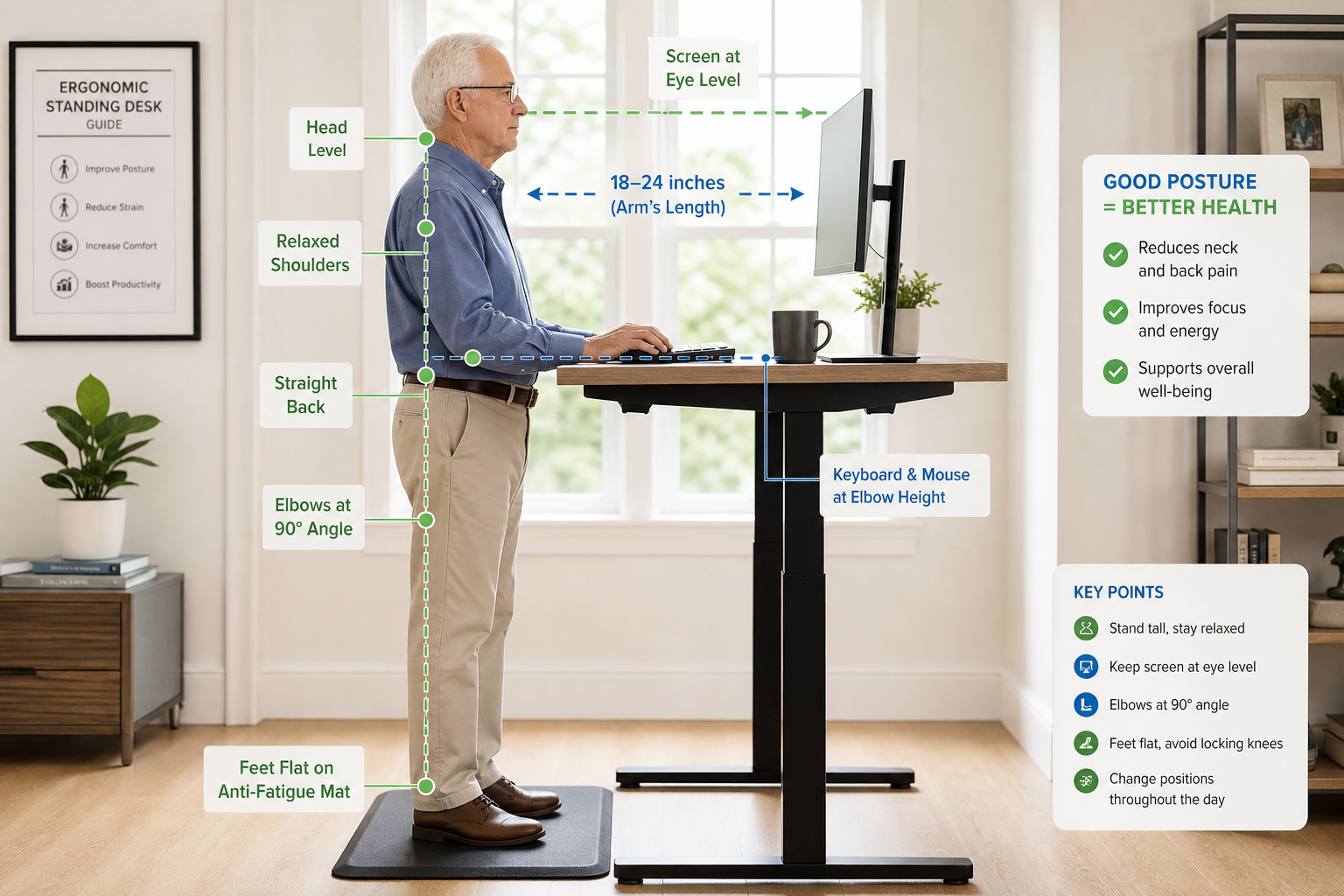
Getting the desk is half the equation. Setting it up correctly is what actually prevents pain and fatigue.
Monitor at Eye Level
Your monitor should be at eye level in both sitting and standing positions. Use a monitor arm or riser if needed. Looking down at a screen worsens forward head posture and strains the neck. The top of the screen should be at or slightly below eye level, and the monitor should be about an arm’s length away.
If you use a laptop, the built-in screen is too low. Use a laptop stand to raise the screen and add an external keyboard and mouse.
Anti-Fatigue Mat
A cushioned anti-fatigue mat reduces foot and leg fatigue during standing periods. The cushioning encourages subtle shifts in weight and foot position, which keeps blood flowing and reduces strain on your feet, ankles, and lower back.
Place the mat where you’ll stand. It should be thick enough to feel cushioned but not so soft that it’s unstable. Look for mats with beveled edges to prevent tripping.
Footrest for Sitting
If your chair is too high (feet don’t reach the floor), a footrest maintains proper leg positioning. Dangling feet put pressure on the back of your thighs and reduce circulation to your legs. A simple angled footrest solves this.
Keyboard and Mouse at Elbow Height
Your forearms should be parallel to the floor in both positions. If your keyboard is too high, you’ll shrug your shoulders. If it’s too low, you’ll hunch forward. Both cause neck and shoulder tension.
Proper Standing Posture
Stand with your weight evenly distributed on both feet, knees slightly bent (not locked), and shoulders relaxed. Don’t lean on the desk for support. If you find yourself leaning heavily, that’s a sign you need to sit down.
Shift your weight from foot to foot occasionally. Stand with one foot slightly forward, then switch. These small movements prevent stiffness.
Gradual Transition
If you’re new to standing while working, start with 5-10 minutes at a time. Build up gradually over a few weeks. Your legs and feet need time to adapt. Jumping straight to 30-minute standing intervals will leave you sore and discouraged.
Common Mistakes to Avoid
Setting the Desk and Forgetting It
The whole point of a sit-stand desk is alternating. If you set it to standing height and leave it there, you’re just replacing one static position with another. Use the memory presets and actually switch positions every 20-30 minutes.
Standing in Unsupportive Shoes
Standing in dress shoes, high heels, or worn-out sneakers makes standing painful. Wear supportive shoes with cushioning, or stand in socks or barefoot on your anti-fatigue mat. If you wear orthotics for sitting, wear them for standing too.
Ignoring Discomfort
Some initial muscle fatigue is normal when you start standing more. Sharp pain, joint pain, or swelling is not normal. If standing causes pain, sit down. Talk to your doctor or a physical therapist if the pain persists. You may need adjustments to your setup or a different approach.
Skipping the Anti-Fatigue Mat
Standing on a hard floor all day hurts. The mat isn’t optional. It makes standing comfortable enough that you’ll actually do it.
Frequently Asked Questions
How often should I switch between sitting and standing?
Every 20-30 minutes is the research-backed recommendation. Some experts suggest a 2:1 ratio (20 minutes sitting, 10 minutes standing) as a starting point. As you build standing endurance, shift toward equal time in each position. The key is never staying in either position for more than 45 minutes continuously.
Set a timer on your phone or use a sit-stand reminder app if you tend to lose track of time. After a few weeks, the habit becomes automatic.
Will a standing desk help my back pain?
For many people, yes. The ability to alternate positions reduces the spinal compression from prolonged sitting and engages the postural muscles that weaken during long sitting stretches. Some people find that standing relieves their back pain immediately, while others need a lumbar support cushion for their sitting periods and an anti-fatigue mat for standing.
However, standing desks are not a cure for back pain. If your pain is severe or chronic, see a doctor or physical therapist. The desk is one tool, not a medical treatment.
Can I assemble a standing desk myself?
Most electric standing desks require assembly (attaching legs to the frame and desktop). The process takes 30-60 minutes with basic tools. If assembly is a concern, some brands offer white-glove delivery and assembly service for an additional fee. Desk converters (like the VariDesk) require zero assembly.
The assembly typically involves attaching