If your Fitbit Charge 6 screen goes dark before you can check your walking stats, use Always-On Display for the workout. If you only want it to wake when you turn your wrist, Screen Wake is the setting to check. The workout option uses more battery, so start with the one that solves your problem. Fitbit workout display settings
Keep the exercise screen visible
- On the Charge 6, swipe left or right to open Exercise and swipe up to find Walk.
- Tap Walk, then swipe up through its settings.
- Turn on Always-On Display.
- Swipe down to the exercise screen and start the walk.
Try it on a short familiar route and see whether you can read the number you want at a glance. Make changes while standing still. If your walks are long, check battery level before starting and decide whether you want the setting on for every walk.
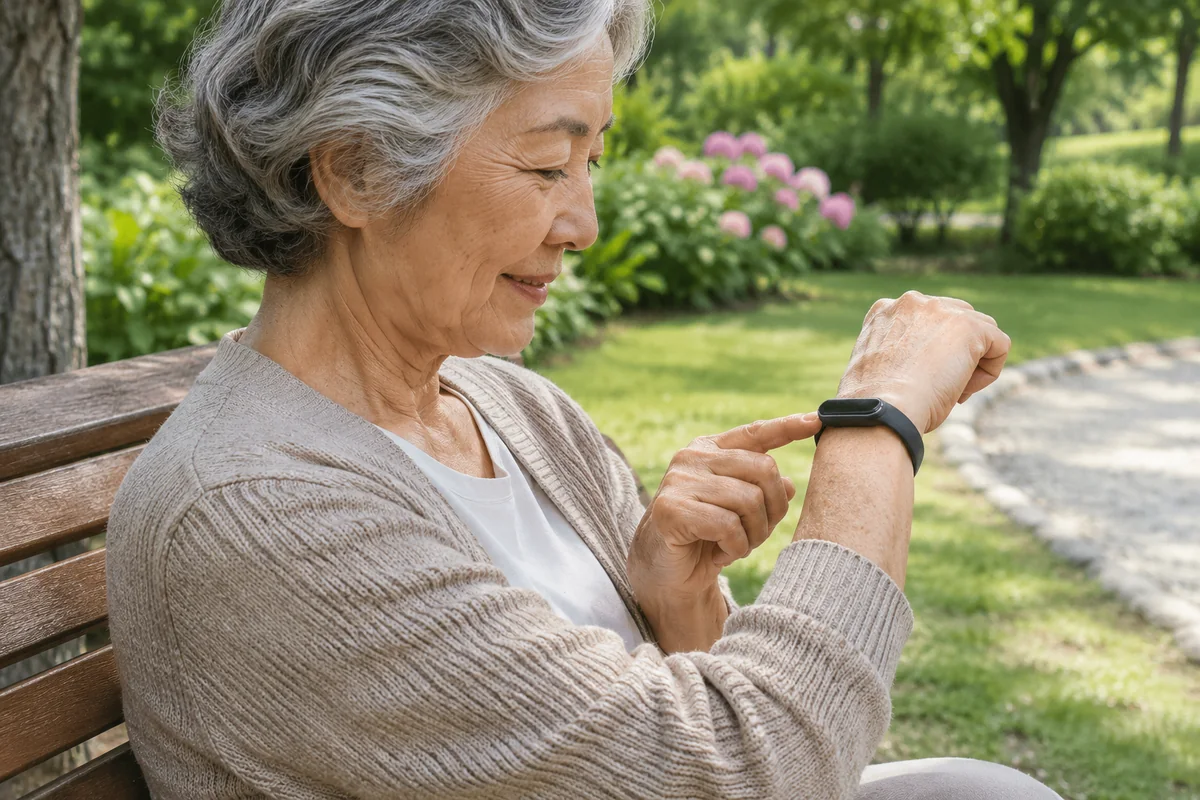
AI-generated editorial illustration.
Use wrist wake for occasional checks
Swipe down for the tracker’s quick settings and look for Screen Wake. With automatic wake active, turn the wrist toward you. In manual wake, firmly tap the screen twice. Check whether Sleep Mode is active if wrist wake used to work and has stopped. Increasing Screen Timeout from the display settings can also make the screen easier to read without keeping it on all the time. Fitbit device navigation and display settings
If you can wake the home screen but lose workout information, repeat the check from inside Walk. The exercise setting is where Google documents keeping the workout display active.